

OneClickConnect Video Visit Features
These are the controls available to the provider and the patient during a OneClickConnect video visit. A third participant has the same features as the patient.
Feature Availability
Section titled “Feature Availability”| Feature | Provider | Patient | Default |
|---|---|---|---|
| Turn camera on or off | ✓ | ✓ | On |
| Turn microphone on or off | ✓ | ✓ | On |
| Turn video preview on or off | ✓ | ✓ | On |
| Invite a third participant | ✓ | – | |
| Screen sharing | ✓ | – | Off |
| Connect an interpreter | ✓ | – | Off, enabled upon request |
| Change background | ✓ | – | Off |
| Patient waiting room | – | ✓ | |
| Exit the visit | ✓ | ✓ |
Camera
Section titled “Camera”

The camera is on by default. When the provider turns off the camera, the patient no longer sees the provider. When the patient turns off the camera, the provider no longer sees the patient.
Microphone
Section titled “Microphone”

The microphone is on by default. When the provider turns off the microphone, the patient no longer hears the provider. When the patient turns off the microphone, the provider no longer hears the patient.
Video Preview
Section titled “Video Preview”

The video preview is a small video window that shows what the other side is seeing. It is on by default.
Turning off the video preview does not hide you: the other side still sees you until you turn off the camera.
Invite a Third Participant
Section titled “Invite a Third Participant”Provider only.

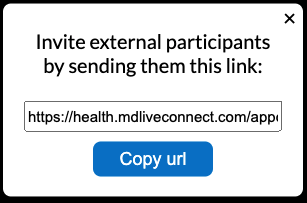
The provider can invite a third participant, such as a nurse or a translator, to join the video room:
- The provider shares the link with the third participant.
- The third participant joins the video room with the link.
The third participant has the same features as the patient. The provider, the patient and the third participant can all see and hear each other.
Screen Sharing
Section titled “Screen Sharing”Provider only.


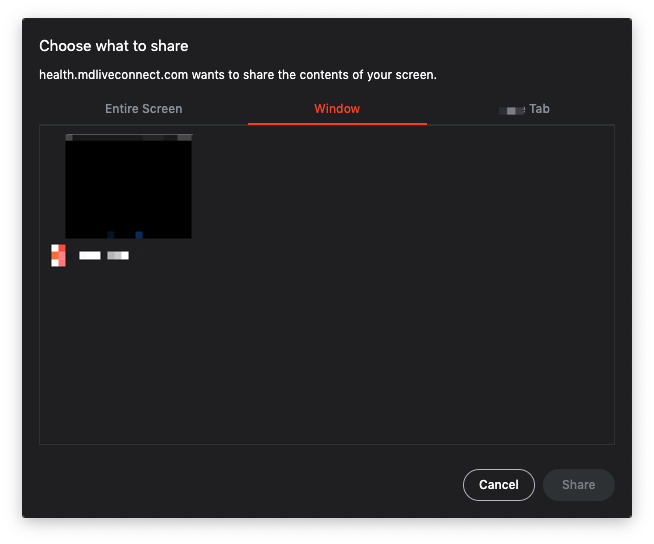
Screen sharing is off by default. The provider can share the screen with the patient, and can choose to share the Entire Screen, an Application Window or a Browser Tab.
Connect an Interpreter
Section titled “Connect an Interpreter”Provider only.

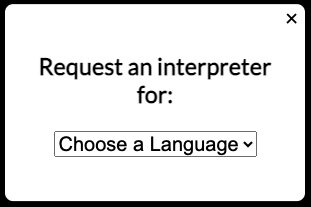
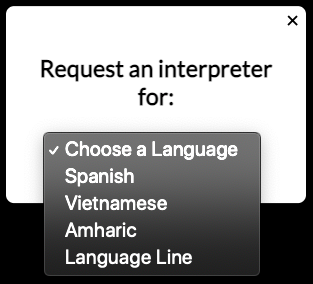
This feature is off by default. It is enabled only when the healthcare entity provides interpreter service to their patients and requests to enable this feature.
After the provider chooses the language, the corresponding phone number is dialed to connect the interpreter into the video room with the patient and the provider.
Change Background
Section titled “Change Background”Provider only.

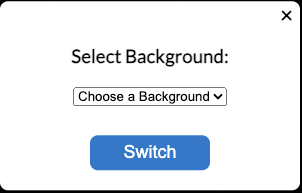
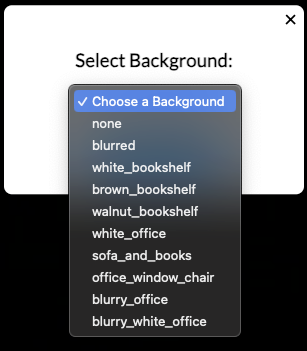
This feature is off by default. It lets the provider choose a preferred background image.
Patient Waiting Room
Section titled “Patient Waiting Room”Patient only.
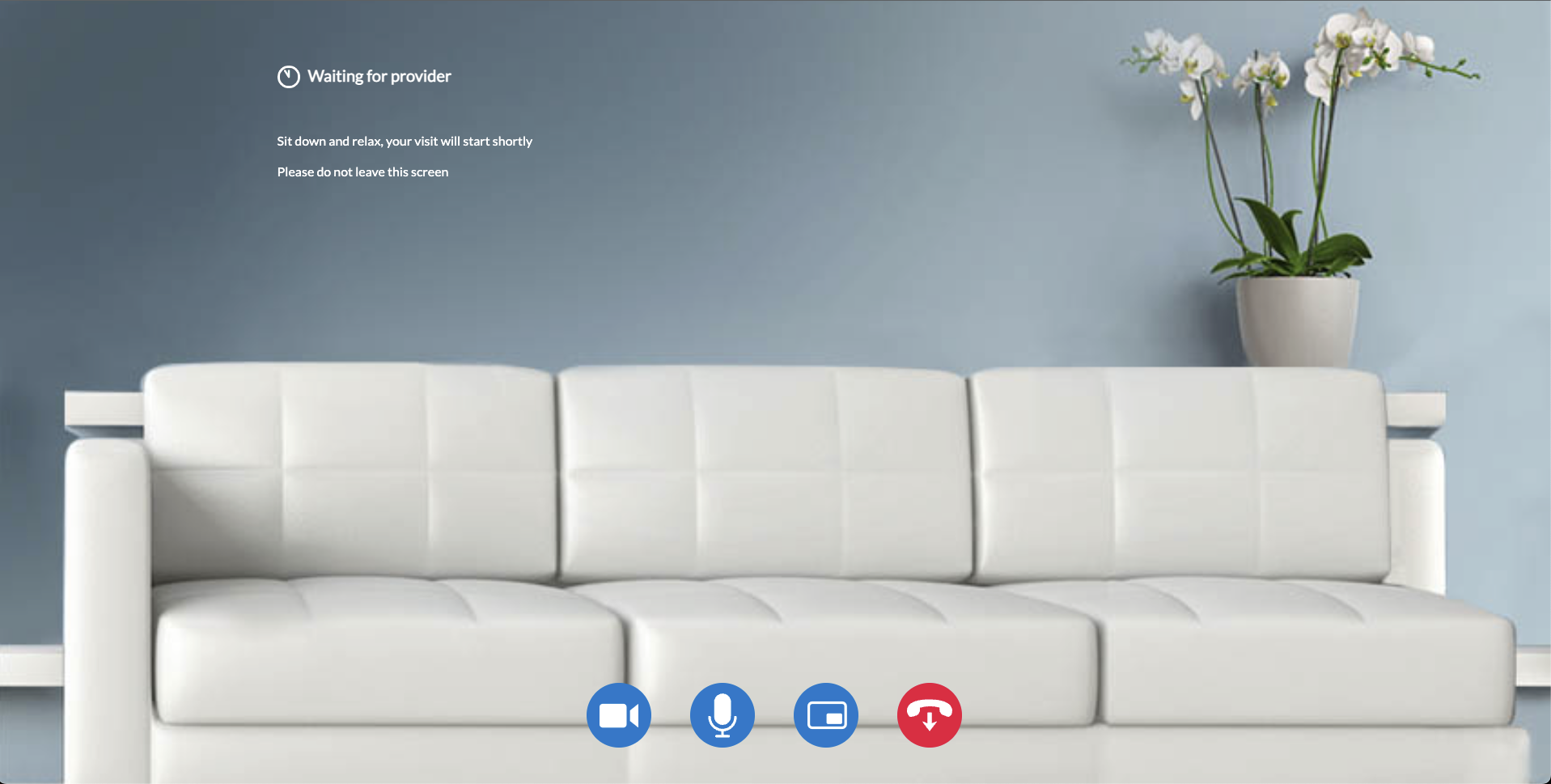
The patient sees the waiting room until the provider joins the video appointment.
Exit the Visit
Section titled “Exit the Visit”Provider
Section titled “Provider”
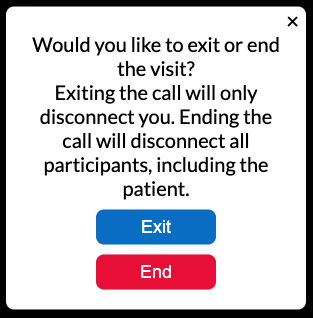
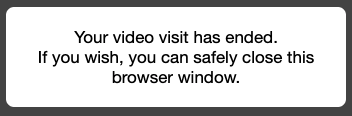
The provider clicks the exit button and chooses one of 2 options:
| Option | Result |
|---|---|
| Exit | Only the provider exits the video room and is redirected to a page that says it is safe to close the browser window. The patient and other participants stay in the video room. |
| End | The video consult ends and all participants are disconnected from the video room. The provider, patient and third participant are all redirected to a page that says it is safe to close the browser window. |
Patient
Section titled “Patient”
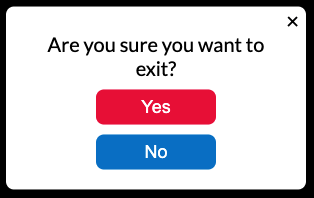
The patient clicks the exit button and chooses Yes to confirm. The patient is redirected to a page that says it is safe to close the browser window.